Problem #1: CS2 Won't Launch
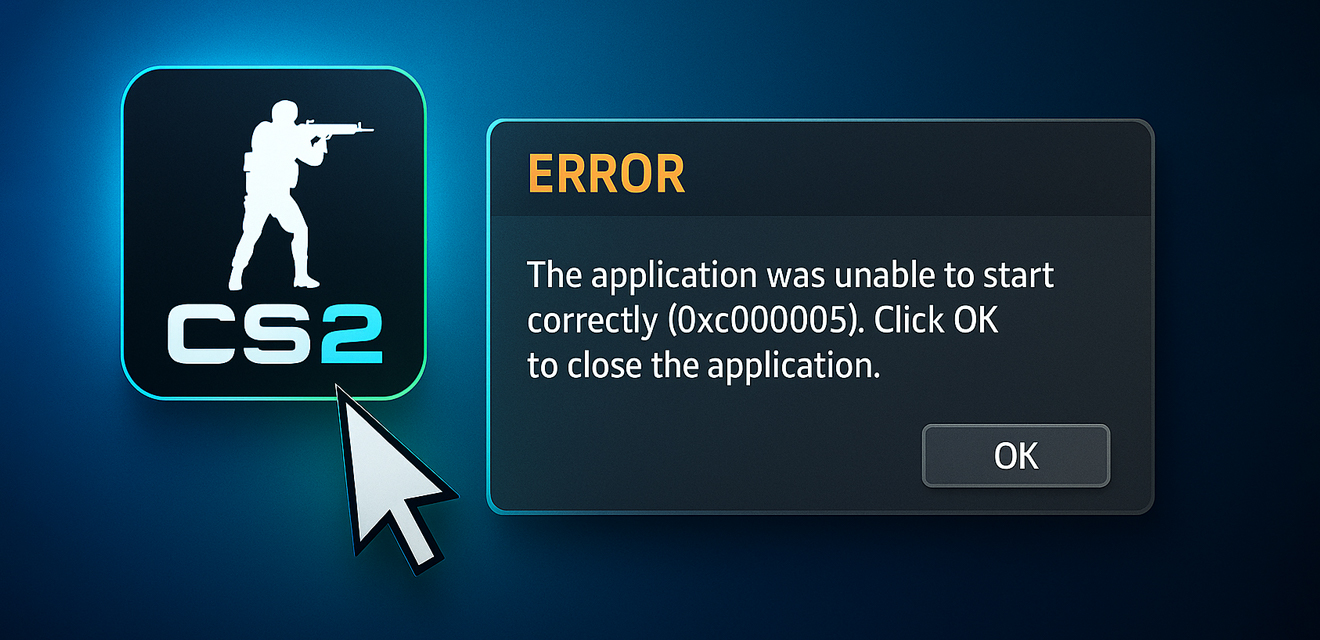
You click the game icon, expecting intense matches, but... nothing happens. Or an error appears and the game closes. Sound familiar? Here's what to do:
Verifying the integrity of game files
This is the first thing you should do. Steam has a built-in feature that checks whether all game files are present and not corrupted.
- Open your Steam Library.
- Find Counter-Strike 2, right-click it, and select "Properties".
- Go to the "Installed Files" tab.
- Click "Verify integrity of game files".
The process may take some time. If Steam finds any issues, it will automatically download and replace damaged files. Very often, this fixes the launch problem.
Updating graphics card drivers
You cannot get far without up-to-date drivers. Graphics card manufacturers (NVIDIA, AMD, Intel) regularly release updates that fix bugs and improve performance in new games, including CS2.
- For NVIDIA: Go to the official NVIDIA website, open the "Drivers" section, select your graphics card model, and download the latest Game Ready driver. Alternatively, use the NVIDIA GeForce Experience app.
- For AMD: Visit the AMD website, open the "Drivers & Support" section, find your graphics card, and download the latest Adrenalin Edition package.
- For Intel (integrated graphics): Look for the latest drivers on the Intel website in the support section.
Important: Before installing new drivers, it is recommended to completely remove the old ones using the Display Driver Uninstaller (DDU) utility in Safe Mode. This will help avoid conflicts.
Running as administrator and in compatibility mode
Sometimes the game does not have enough permissions to launch correctly.
- Find the game's executable file (usually cs2.exe in the game folder, for example: Steam\steamapps\common\Counter-Strike Global Offensive\game\bin\win64).
- Right-click it and select "Properties".
- Go to the "Compatibility" tab.
- Check the box "Run this program as an administrator".
- You can also try setting compatibility mode with a previous Windows version (for example, Windows 8), but this should be a last resort.
Checking antivirus and firewall
Your antivirus or Windows Firewall may mistakenly block the game from launching. Try temporarily disabling them (only for testing, and don't forget to turn them back on!) or add the CS2 folder and its executable file to the exclusions.
Updating Windows and required libraries
Make sure you have all the latest Windows updates installed. It is also important to have current versions of DirectX and Microsoft Visual C++ Redistributable libraries. They are usually installed together with the game, but sometimes errors occur. You can download them from the official Microsoft website.
Disabling overlays
Overlays from various programs (Discord, Steam Overlay, NVIDIA ShadowPlay, Xbox Game Bar, etc.) may conflict with CS2. Try disabling them in the settings of the relevant applications.
- Steam Overlay: Steam -> Settings -> In Game -> uncheck "Enable the Steam Overlay while in-game".
- Discord: User Settings -> Game Overlay -> disable "Enable in-game overlay".
- NVIDIA GeForce Experience: Settings (gear icon) -> General -> disable "In-game overlay".
If CS2 still does not launch after these steps, the problem may be deeper, possibly even hardware-related. But in most cases, one of these methods helps.
Problem #2: CS2 Lags / Low FPS
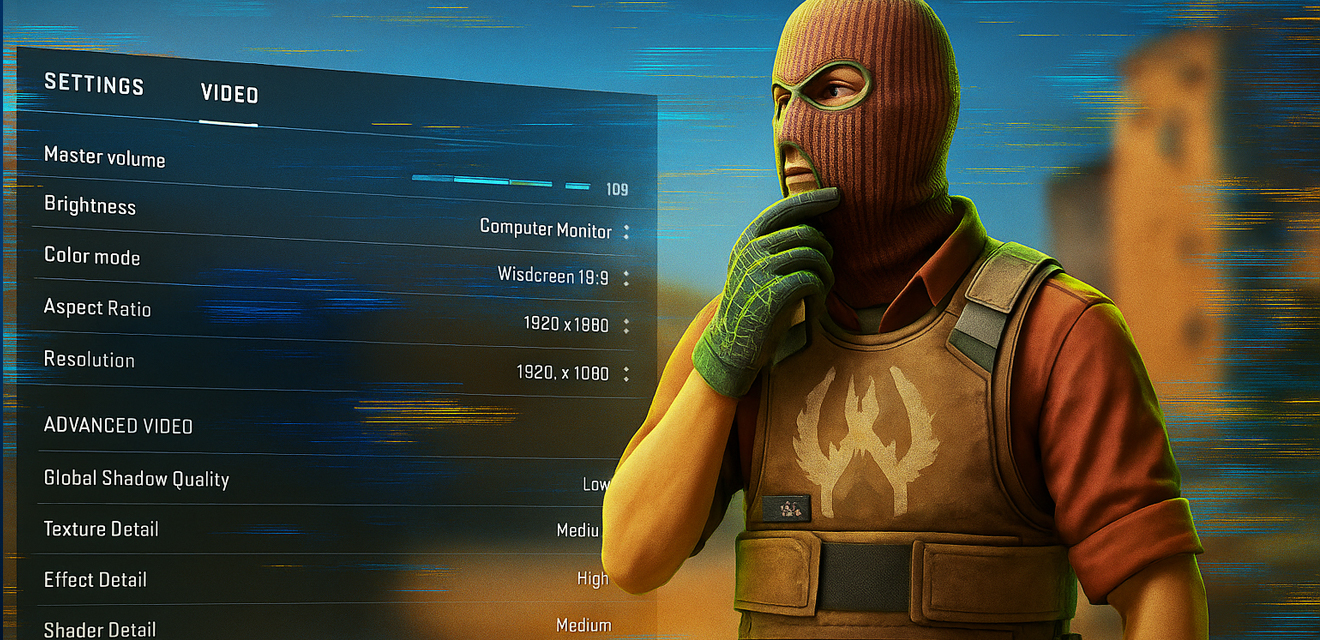
Lags, freezes, stutters, low FPS - all of this ruins the enjoyment of the game and prevents you from showing your best skill. Let's figure out how to optimize CS2 in 2025.
Optimal graphics settings in CS2
The first thing to pay attention to is the in-game graphics settings. It is not always worth setting everything to maximum, especially if your PC is not top-tier.
- Resolution: Use your monitor's native resolution. Lowering the resolution can increase FPS, but it will significantly worsen image quality.
- Global Shadow Quality: A very resource-intensive setting. Medium or low values will significantly increase FPS.
- Model and Texture Detail: Medium values are a good compromise between quality and performance.
- Shader Detail: You can set this to low if FPS is critically low.
- Particle Detail: This also affects FPS during explosions and smoke effects. Use medium or low values.
- Ambient Occlusion: Turn it off if you need an FPS boost.
- High Dynamic Range (HDR): It is better to set it to "Performance".
- FidelityFX Super Resolution (FSR): If your graphics card supports FSR, try enabling it in "Quality" or "Balanced" mode. This is an upscaling technology that can provide a good FPS increase with minimal quality loss. For NVIDIA cards, an alternative is DLSS, if the game supports it.
- Vertical Sync (V-Sync): It is recommended to disable it, as it can add input lag. If you see screen tearing, it is better to use Adaptive Sync (G-Sync/FreeSync), if your monitor and graphics card support it.
- Anti-Aliasing: MSAA 2X or 4X is a good choice. Higher values hit FPS hard. You can try FXAA if FPS is very low, but it makes the image slightly blurry.
Experiment! Find your own balance between a nice-looking image and high, stable FPS. The goal is to reach at least an average FPS equal to or higher than your monitor's refresh rate (for example, 144 FPS for a 144 Hz monitor).
Graphics card settings
The NVIDIA and AMD control panels also include options that can affect CS2 performance.
- NVIDIA Control Panel:
- "Manage 3D settings" -> "Program Settings". Add cs2.exe.
- Power management mode: Set it to "Prefer maximum performance".
- Texture filtering - Quality: Set it to "High performance".
- Vertical sync: Set it to "Off" (if you are not using G-Sync).
- AMD Radeon Software:
- "Games" -> select CS2 or add it manually.
- Radeon Anti-Lag: Enable it to reduce input lag.
- Radeon Chill: May help reduce temperature and power consumption, but it can sometimes affect FPS stability. Experiment with it.
- Radeon Image Sharpening: Can improve image sharpness when using FSR or low texture settings.
- Texture filtering mode: "Performance".
System cleanup and background processes
Close all unnecessary programs before launching CS2: browsers with lots of tabs, messengers, torrent clients, and so on. They consume CPU and RAM resources.
- Task Manager: Press Ctrl+Shift+Esc and check which processes are loading the system.
- Startup apps: Disable unnecessary programs from launching together with Windows. You can do this through Task Manager (the "Startup" tab) or the Autoruns utility from Sysinternals.
- Disk Cleanup: Use the built-in "Disk Cleanup" utility to remove temporary files. Make sure there is enough free space on the drive where the game is installed (especially if it is an SSD).
Checking for overheating
If lag starts after some time in the game, overheating may be the reason.
- Use temperature monitoring programs such as HWMonitor or MSI Afterburner.
- Normal temperatures under load are up to 80-85°C for the CPU and up to 80-85°C for the graphics card (depending on the model). If temperatures are higher, you need to improve cooling:
- Clean dust from your PC.
- Check that the fans are working properly.
- Replace the thermal paste on the CPU and graphics card (if you know how, or contact a specialist).
- Ensure good case ventilation.
Updating BIOS and chipset drivers
Sometimes performance problems may be related to an outdated motherboard BIOS or chipset drivers. Check your motherboard manufacturer's website for updates. Warning: updating BIOS is a procedure that requires caution. If you are not sure, it is better to leave it to a specialist.
CS2 launch options in Steam
You can try adding special launch options in Steam:
- Steam Library -> CS2 (right-click) -> Properties.
- General tab -> Launch Options.
- Popular and potentially useful commands (use with caution; some may be outdated or cause issues):
- -novid : Skips the intro video.
- -high : Launches the game with high priority.
- -threads [number of cores/threads] : Specifies the number of CPU threads for the game (for example, -threads 8). The relevance of this command for CS2 is questionable, as the game should determine the optimal number automatically.
- +fps_max [value] : Limits the maximum FPS (for example, +fps_max 0 to remove the limit, or +fps_max 144 to match your monitor's refresh rate).
- -nojoy : Disables joystick support.
Important: Do not add too many commands at the same time. Test them one by one to understand which one has an effect. Many old commands from CS:GO no longer work in CS2 or work incorrectly.
Problem #3: CS2 Crashes
The game closes by itself, throws you back to the desktop, or shows an error message - these are crashes. The reasons can be similar to launch and lag problems, but there are also some specific nuances.
All of the solutions listed above
Yes, many tips from the previous sections (checking files, updating drivers, disabling overlays, checking for overheating, closing background programs) are also relevant for fixing crashes. Start with them.
Not enough RAM or paging file space
CS2 consumes quite a lot of RAM. If you do not have much of it (for example, 8 GB) and many other programs are open at the same time, the game may crash.
- Check RAM usage in Task Manager during gameplay.
- Make sure the Windows paging file is configured correctly (usually it should be set to "System managed size"). It is not recommended to disable it. If you have little RAM, you can try manually increasing its minimum and maximum size, but this does not always have a positive effect and may slow down the system if a slow HDD is used.
- The ideal option is to have 16 GB of RAM for comfortable CS2 gameplay and simultaneous use of other applications.
Power supply unit (PSU) issues
Unstable operation or insufficient power from the power supply unit can lead to sudden crashes and PC restarts during gameplay, when the load on components is at its highest. If the PSU is old or low-quality, it may not cope. Diagnosing this is difficult without special equipment, but if crashes happen randomly and are accompanied by other strange PC behavior, the PSU is one of the suspects.
Component overclocking
If you have overclocked the CPU, graphics card, or RAM, this may be the cause of instability and crashes. Try returning the components to their stock frequencies and voltages and test the game. If the crashes stop, your overclock was unstable.
Corrupted Windows system files
Sometimes crashes may be caused by corrupted system files of the operating system itself. You can try restoring them:
- Open Command Prompt as administrator (find "cmd" in Windows search, right-click it -> "Run as administrator").
- Enter the command sfc /scannow and press Enter.
- Wait until the scan and repair process is complete.
DirectX problems
Reinstalling or updating DirectX can sometimes help. The latest DirectX End-User Runtime can be downloaded from the Microsoft website.
Software conflicts
A specific program on your PC may be conflicting with CS2. Try performing a "clean boot" of Windows to start the system with only basic Microsoft services and check whether the problem remains. Instructions for clean boot are easy to find online for your Windows version.
Conclusion: Patience and a methodical approach are the key to success!
Technical problems with games are unpleasant, but as you can see, in most cases they can be solved. The main thing is to approach the issue methodically, test hypotheses one by one, and not give up. Start with the simplest and most common solutions, then gradually move on to more complex ones.