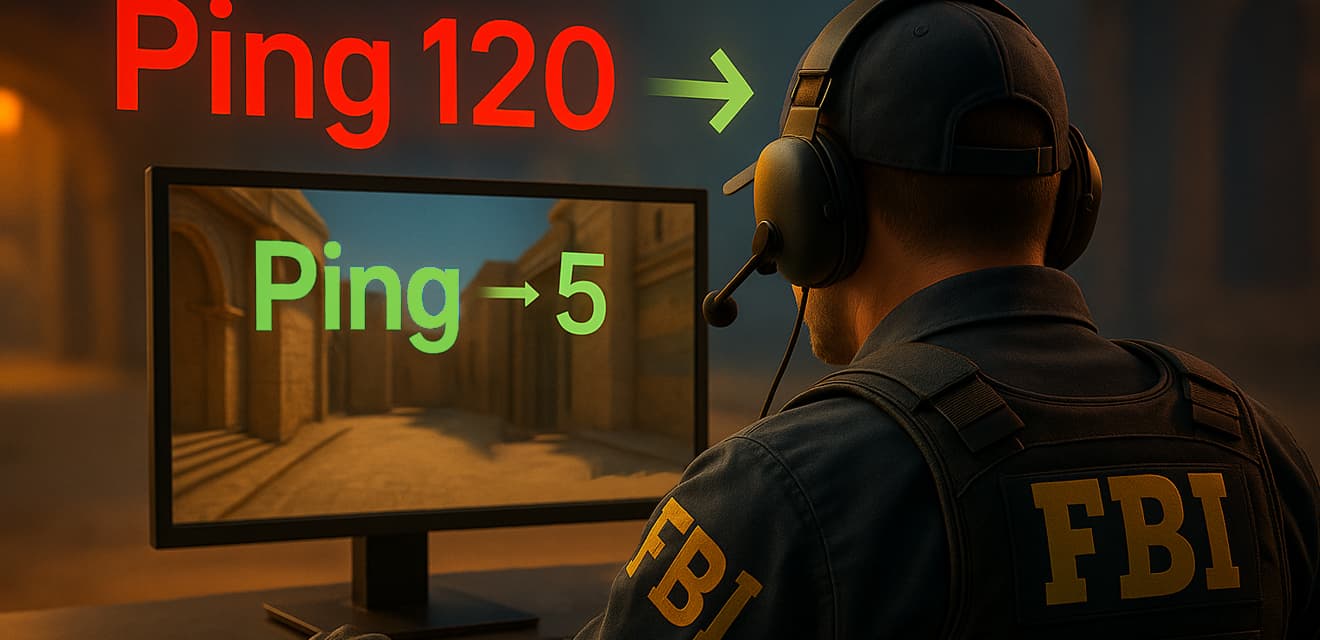
If you are here, it means that merciless lags and high ping in Counter-Strike 2 have already managed to spoil more than one rink for you. It's a familiar situation: you are aiming at the enemy, ready to make a decisive shot, and then... the picture freezes, and the next moment you are already watching the game from the side. It's a shame, isn't it? But don't hurry to break the keyboard! In most cases you can fix the situation, and today I will tell you how to do it.
This article is your personal guide to taming insidious ping and getting rid of lags in CS2. We'll go over everything from checking your internet connection to fine-tuning the game itself. Ready? Then let's go!
What are ping and lags and why do they ruin the game?
Before we rush into the customization battle, let's quickly understand the terminology.
- Ping is the time it takes for a packet of data from your computer to reach a game server and return. It is measured in milliseconds (ms). The lower the ping, the faster the game responds to your actions. The ideal ping for CS2 is up to 50 ms. You can play reasonably well up to 80-100 ms, but above that it is already uncomfortable.
- Lags are visible delays and slowdowns in a game. They can be caused by high ping, data packet loss, or performance issues on your PC (but that's for another time, today we're focusing on networking).
- Packet Loss - A situation where some of the data exchanged between your PC and the server is lost along the way. This leads to jerks, character teleportation and other troubles.
You get the point? That's great! Now for the practical steps.
Step 1: Diagnose and optimize your Internet connection
Your internet is your foundation. If it's shaky, no amount of customization will save it.
- A wired connection is your best friend. The golden rule of online gaming: forget Wi-Fi if you want stability. An Ethernet cable directly from your router to your PC will ensure minimal latency and no interference, which wireless networks love so much. If you can't go without Wi-Fi, make sure the router is not too far away, there are no thick walls between it and your PC, and it's running on 5 GHz (which is less congested and offers more speed, but has a shorter range than 2.4 GHz).
- Reboot your network equipment. It's trivial, but it often helps. Unplug the modem and router for a couple of minutes, then turn on the modem first, wait for it to fully boot up, and then the router. This can reset minor errors and refresh the connection.
- Check your internet speed. Use services like Speedtest by Ookla or similar. Pay attention not only to the download/upload speed, but also to the ping to the nearest server. If the results are much lower than your ISP claims, it's a cause for concern.
- Contact your ISP. If the speed is slow, the ping to all servers is high, or there are frequent interruptions, call or write to the technical support of your ISP. Perhaps the problem is on their side (line failure, faulty equipment, network overload in your neighborhood). Describe the situation, mention that the problems occur in an online game.
- Close unnecessary programs and devices. Torrent clients, streaming services, cloud synchronization, automatic updates of Windows or other programs - all these actively consume the Internet channel. Before playing, make sure all such applications are closed. Also, ask your family not to load the network with heavy content (watching 4K videos, downloading large files) while you are playing a game.
Step 2: Setting up your computer and operating system
Your PC could be the source of the problems too.
- Update your network card drivers. Outdated or poorly installed drivers can cause network connection problems. Go to the website of your motherboard manufacturer (if the network card is built-in) or the manufacturer of the network card itself and download the latest drivers for your model.
- Network adapter power saving settings. Windows sometimes tries to save power by disabling or limiting the performance of the network adapter.
- Go to "Device Manager" (right click on the Start menu).
- Find your network adapter under "Network Adapters".
- Right click on it -> "Properties" -> "Power Management" tab.
- Uncheck "Allow this device to be turned off to save power".
- Check your firewall and antivirus. Sometimes a firewall (Windows built-in or third-party) or antivirus can overzealously filter CS2 traffic, causing delays. Try adding CS2 and Steam to your security software's exclusion list. As a last resort, you can disable them temporarily for a test (but don't forget to turn them back on!).
- Clean the DNS cache and change DNS servers. Sometimes problems may be related to your ISP's DNS servers.
- Clearing the cache: Open a command prompt as administrator (in Windows search type cmd, right click -> "Run as administrator") and enter the command ipconfig /flushdns.
- Changing DNS: You can try using public DNS servers, for example from Google (8.8.8.8.8 and 8.8.8.4.4) or Cloudflare (1.1.1.1.1 and 1.0.0.1). This is changed in the network connection properties (IPv4). This often gives a boost in response speed.
Step 3: Settings directly in Counter-Strike 2
Now let's look into the game itself.
- Selecting the server with the lowest ping. In CS2 you can limit the maximum acceptable ping for matchmaking. This is done in the game settings.
- Go to "Settings" -> "Game" -> "Maximum allowable ping in matchmaking search".
- Set a value that you consider comfortable (for example, 50-70). The game will try to find servers that do not exceed this threshold. Keep in mind that too low a value may increase the match search time.
- Console commands (with caution!). In CS2, some old console commands that affected networking in CS:GO may work differently or be removed altogether. However, one key setting remains:
- rate: This command is no longer used directly as it is in CS:GO. Instead, CS2 uses the Max Acceptable Game Traffic setting in the game settings menu. Set it to "Unrestricted" if you have a good internet connection. If your internet connection is weak, you can try lowering this value, but it may affect how quickly you receive information from the server.
- Other commands, such as cl_updaterate and cl_interp_ratio, are handled largely automatically in CS2 and do not require manual configuration for most players. Valve is committed to simplifying network settings. Experimenting with them without a thorough understanding can be rather harmful.
- Disable background downloads in Steam. Make sure Steam is not downloading updates for other games or itself while you are playing CS2.
- On Steam: "Steam" -> "Settings" -> "Downloads".
- Uncheck "Allow downloads during gameplay".
Step 4: What NOT to do or what is ineffective
There are many "gamer" network optimizer programs or VPN services that promise to reduce ping. Be careful:
- "Internet Accelerators": Most of them are placebo or even malware. They can't magically improve your physical connection to the server.
- VPN to reduce ping: A VPN can only help if the problem is poor traffic routing at your ISP. In this case, a VPN can direct traffic to a more optimal path. But more often than not, a VPN is the opposite, adding an extra node and increasing ping. Test it, but don't expect miracles. Exception - if you are trying to connect to servers of a very distant region, then specialized gaming VPNs can sometimes help.
Conclusion: Patience and a systematic approach
Reducing ping and lag in CS2 is often a process of sequential testing and debottlenecking. There is no single magic button.
- Start with the basics: wired connection and rebooting your hardware.
- Check your tariff and connection with your ISP.
- Optimize your PC: drivers, background processes.
- Customize CS2: max ping, traffic settings.
Try the tips from this article one at a time to see what had an effect. Write down your observations. Sometimes the problem can be complex.
Remember that CS2 servers are not perfect either. Sometimes lags can be caused by problems on Valve's side, especially after major updates. In such cases, you can only wait for a fix.